* What is Pageboard? *
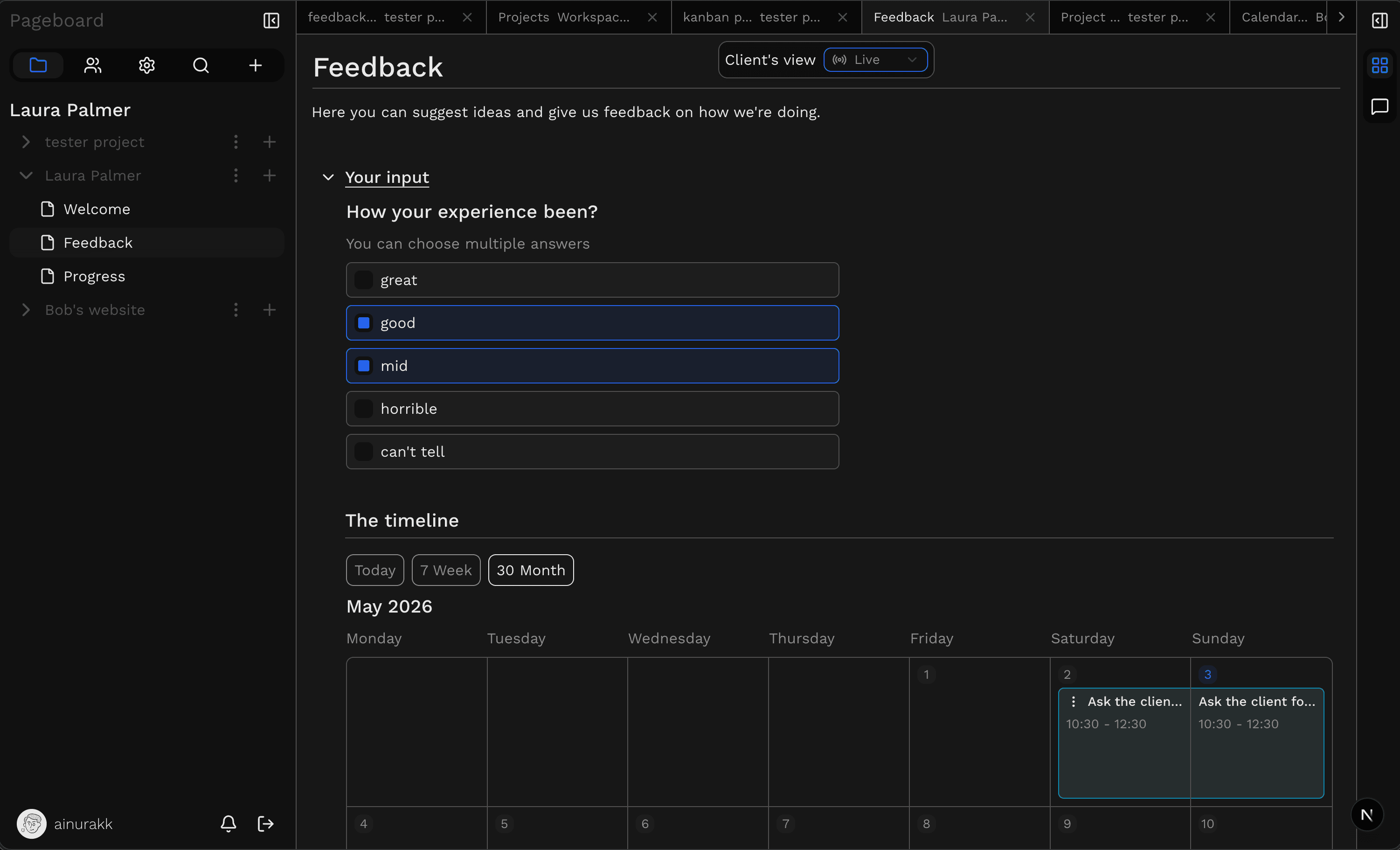
Pageboard is a client-freelancer communication tool. Instead of splitting a project across chat, docs, forms, and boards, you create shared pages with components, inputs, feedback, and progress that stay tied to the work itself.
Pages built for client work
Create project pages for briefs, updates, approvals, questions, and deliverables instead of sending scattered messages.
Structured feedback and inputs
Use feedback blocks, selects, radios, idea boards, and text inputs directly next to the work so replies stay organised.
Progress and analytics
Keep progress visible and review the latest live changes and current client selections without digging through conversations.
* Why use it over chat, docs, or generic tools? *
Most freelance projects end up spread across email, DMs, notes, forms, and task boards. Pageboard keeps the client-facing side of the project in one place, so it is faster to understand, easier to update, and harder for context to get lost.
What makes it useful
One link for the client instead of a stack of tools.
Better than back-and-forth
Feedback, progress, and decisions stay attached to the exact page or component they belong to.
Reusable for new work
Turn a setup into a repeatable structure for the next client or project type.
* How does it work? *
More in-depth tutorial with videosThis example shows a client page being built with the Select component: first you create the page structure, then you tune each component's settings, and finally the client sees the live result.
Step 1
Set up the page
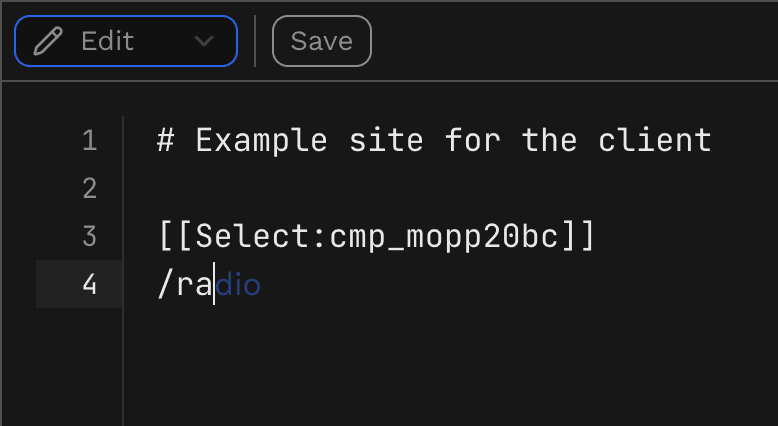
Start by creating a new page and adding the first sections. This defines what the client needs to see, respond to, or review.
Step 2
Adjust component settings
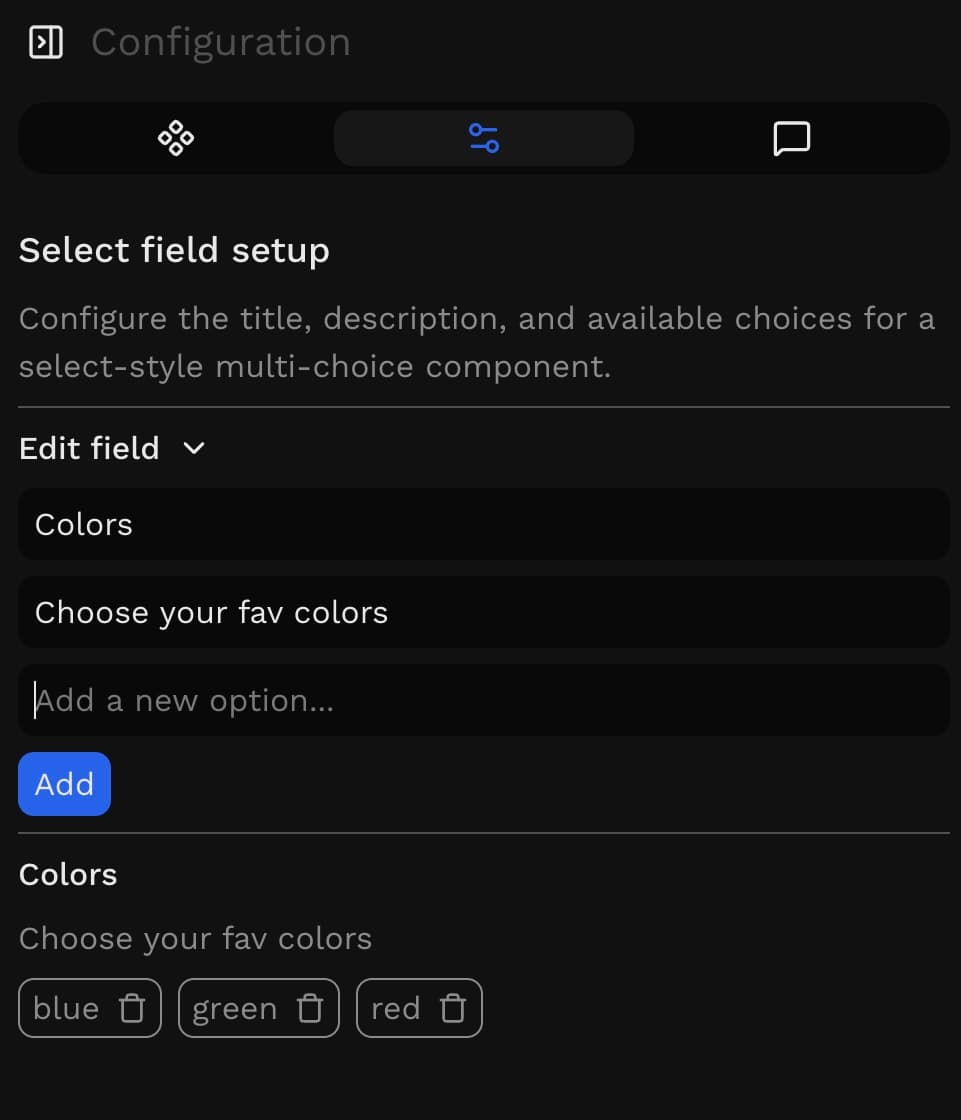
Edit each block and tweak the Select component options, labels, and behaviour. This is where the page becomes specific to the project and the input you want to collect.
Step 3
Share the live page
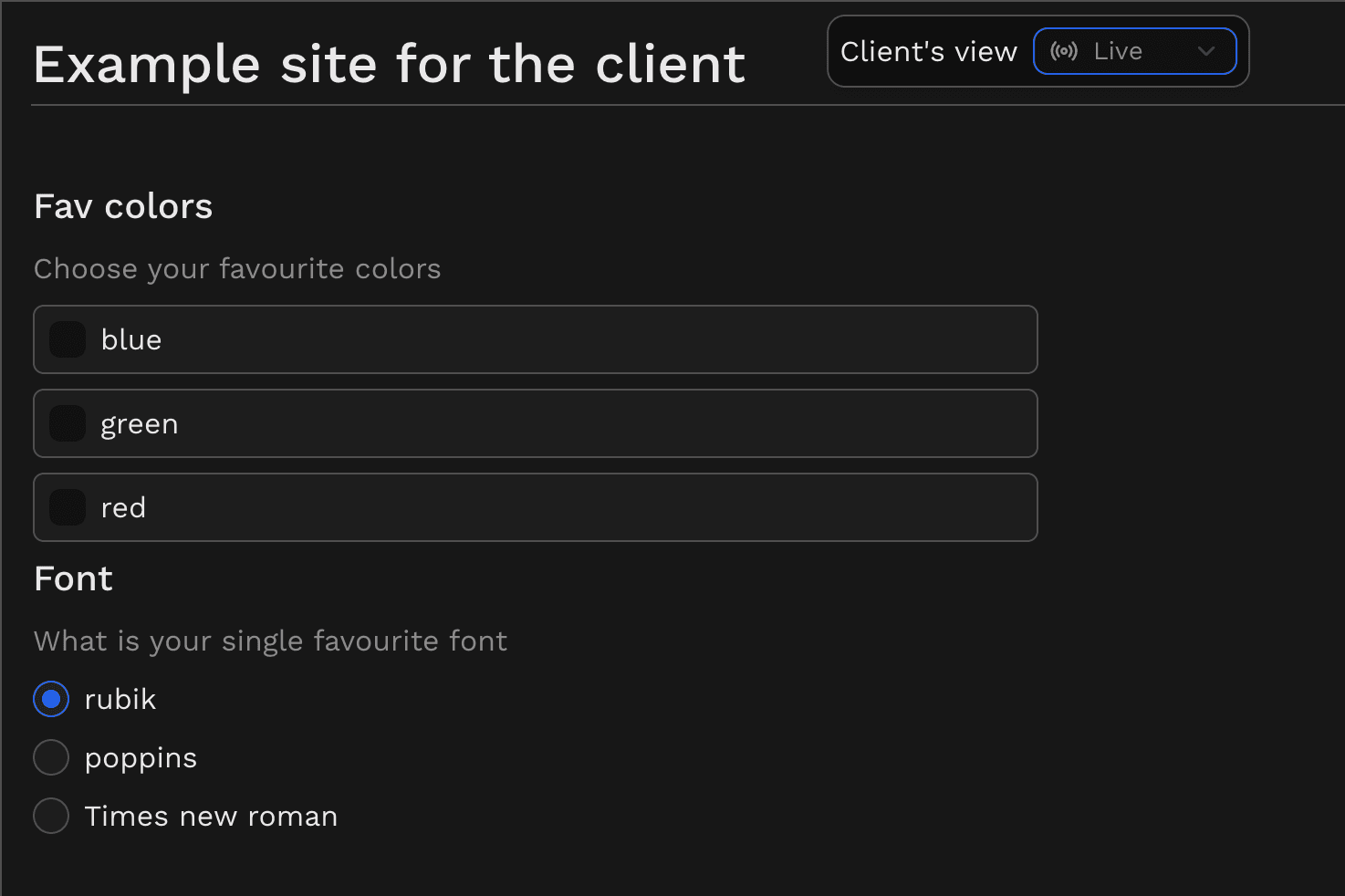
Live view shows exactly what the client sees. They get one clear page for reviewing progress and responding without extra back-and-forth.
* Completely free. *
Create your account and build a clearer way to share work, collect feedback, and keep projects moving.